
How to Transfer Data From Your Old Phone to a New One (Android and iPhone)
Got a new phone and dreading the setup? Moving contacts, photos, and WhatsApp history over doesn’t have to mean starting from scratch. Here’s the fastest, safest way to do it — whichever direction you’re switching.
Android to Android
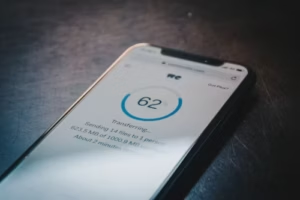
This is the easiest transfer of the three. Samsung, Xiaomi, and most other Android brands include a built-in transfer tool (Samsung’s is called “Smart Switch”, Xiaomi’s is “Phone Clone”) that moves everything — contacts, photos, apps, call logs, and even WhatsApp data — directly over Wi-Fi, without needing mobile data.
Steps:
- Install the transfer app on both phones if it isn’t pre-installed (search your phone brand + “switch” or “clone” in the Play Store)
- Open it on both devices and follow the pairing instructions — usually a QR code scan
- Select what to transfer: contacts, photos, apps, messages
- Keep both phones close together and wait for the transfer to finish (typically 10–30 minutes depending on how much data you’re moving)
For WhatsApp specifically on Android-to-Android: back it up to Google Drive first (WhatsApp → Settings → Chats → Chat backup → Back Up), then when you install WhatsApp on the new phone and verify the same number, it will automatically offer to restore from that backup.
iPhone to iPhone
Apple makes this closest to effortless. Hold both phones near each other during setup and use Quick Start—it transfers everything wirelessly, including WhatsApp if you have iCloud backup enabled for it. Just make sure your old iPhone is backed up to iCloud (or connected via cable) before starting.
Android to iPhone
Apple’s own Move to iOS app handles most of this:
- On your old Android phone, install “Move to iOS” from the Play Store
- On your new iPhone, get to the “Apps & Data” screen during setup and choose “Move Data from Android”
- Your iPhone will show a code — enter it on the Android app
- Select what to transfer (contacts, messages, photos) and wait — typically 10–30 minutes
Important: Moving to iOS does not transfer WhatsApp chats. For that, WhatsApp has its own dedicated path: on your old Android, open WhatsApp, update it to the latest version, and then during the new iPhone’s initial WhatsApp setup, follow the prompt to Transfer Chats from Android — this must happen during WhatsApp’s first-time setup on the new phone, not after.
iPhone to Android (including Samsung’s Smart Switch)
Two options:
- Google’s “Switch to Android” app (installed on the old iPhone) transfers contacts, calendar, photos, and videos via a temporary connection or your Google account
- Samsung phones specifically: go to Settings → Accounts and backup → Bring data from old device on the new Samsung, select “iPhone/iPad” as the source, connect via cable, and follow the prompts — this also pulls WhatsApp data directly if guided through the full flow
For WhatsApp iPhone-to-Android specifically: on your old iPhone, go to WhatsApp Settings → Chats → Transfer Chats to Android, and run this during the new Android phone’s setup — same rule as the reverse direction; it has to happen during first-time setup.
Before You Wipe Your Old Phone
Don’t erase your old device until you’ve confirmed everything actually made it across:
- Open your Photos app on the new phone and spot-check recent images
- Open WhatsApp and confirm chat history is intact, not just your contact list
- Check that key apps (banking, mobile money) are reinstalled and you can log back in — note that locally saved data in these apps (like saved transaction history in some banking apps) may not transfer and will need a fresh login
What Never Transfers Automatically
A few things always need manual handling regardless of direction:
- eSIM and phone number — stay on the old phone until you contact your carrier or use their app to move them
- Payment cards (Apple Pay, Google Wallet) — must be re-added manually; your bank will verify you again even with the app already installed
- DRM-locked content — purchased movies or music tied to your account need to be re-downloaded from your account on the new device, not copied as files
Bottom Line
The same operating system (Android to Android, or iPhone to iPhone) is by far the smoothest transfer — budget 15–30 minutes and you’re done. Crossing between the two takes a bit more manual work, particularly for WhatsApp, but every path above is free and doesn’t require any special cables or third-party software.
Transfer times and available options may vary slightly depending on your specific phone models and software versions.